<?xml version="1.0" encoding="utf-8"?><feed xmlns="http://www.w3.org/2005/Atom" xml:lang="ja"><generator uri="https://jekyllrb.com/" version="3.10.0">Jekyll</generator><link href="m20027.github.io/m20027/feed.xml" rel="self" type="application/atom+xml" /><link href="m20027.github.io/m20027/" rel="alternate" type="text/html" hreflang="ja" /><updated>2026-05-09T00:56:11+00:00</updated><id>m20027.github.io/m20027/feed.xml</id><title type="html">yama’s blog</title><subtitle>yama</subtitle><author><name>yama</name></author><entry><title type="html">LuaLatexでBibLatexを使う</title><link href="m20027.github.io/m20027/2026/04/bibtex/" rel="alternate" type="text/html" title="LuaLatexでBibLatexを使う" /><published>2026-04-11T00:00:00+00:00</published><updated>2026-04-11T00:00:00+00:00</updated><id>m20027.github.io/m20027/2026/04/bibtex</id><content type="html" xml:base="m20027.github.io/m20027/2026/04/bibtex/"><![CDATA[<h2 id="目的">目的</h2>
<p>複数の文献を1つの箇所で引用する時に[1-2]のようにしたい（multiple citationと検索するとよさそう）．</p>

<h2 id="問題">問題</h2>
<p>上の目的を達成するため，citeパッケージを使うという記事が多いが，私の環境では参考文献の数字の部分が”?”になってしまった．</p>

<h2 id="解決策">解決策</h2>
<p>スタイルを指定するのではなく，以下のように参考文献のスタイル (bibstyle)と引用のスタイル (citestyle)を別々に指定する．</p>
<div class="language-plaintext highlighter-rouge"><div class="highlight"><pre class="highlight"><code>\usepackage[bibstyle=ieee,
citestyle=numeric-comp,
maxnames=99,maxnames=2,
url=true,doi=true,
hyperref=true,
bibencoding=utf8,
backend=biber
]{biblatex}
</code></pre></div></div>
<p>参考：<a href="https://qiita.com/shiro_takeda/items/fac1351495f32c224a28#-bibstylefile">biblatex のオプションの解説</a></p>

<p>※元々Qiitaに掲載していたもの．</p>

<body>
<p>Last updated: <time id="modified_date"></time></p>
<script>
const last = new Date(document.lastModified);
const viewDateText = last.getFullYear() + "/" + (last.getMonth() + 1) + "/" + (last.getDate());
document.getElementById('modified_date').textContent = viewDateText;
</script>
</body>]]></content><author><name>yama</name></author><category term="tips" /><summary type="html"><![CDATA[目的 複数の文献を1つの箇所で引用する時に[1-2]のようにしたい（multiple citationと検索するとよさそう）． 問題 上の目的を達成するため，citeパッケージを使うという記事が多いが，私の環境では参考文献の数字の部分が”?”になってしまった． 解決策 スタイルを指定するのではなく，以下のように参考文献のスタイル (bibstyle)と引用のスタイル (citestyle)を別々に指定する． \usepackage[bibstyle=ieee, citestyle=numeric-comp, maxnames=99,maxnames=2, url=true,doi=true, hyperref=true, bibencoding=utf8, backend=biber ]{biblatex} 参考：biblatex のオプションの解説 ※元々Qiitaに掲載していたもの． Last updated:]]></summary></entry><entry><title type="html">ssh周りの設定</title><link href="m20027.github.io/m20027/2026/04/ssh/" rel="alternate" type="text/html" title="ssh周りの設定" /><published>2026-04-11T00:00:00+00:00</published><updated>2026-04-11T00:00:00+00:00</updated><id>m20027.github.io/m20027/2026/04/ssh</id><content type="html" xml:base="m20027.github.io/m20027/2026/04/ssh/"><![CDATA[<p>毎回（IPやオプション付きの長い）sshコマンドを打たずにサーバに接続できる方法．ほとんど参考資料通り．</p>

<h2 id="sshconfigの作成">.ssh/configの作成</h2>
<p>ファイルがない場合は作成し，ディレクトリのパーミッションを変更．</p>

<pre><code class="language-shell:terminal">mkdir ~/.ssh
chmod 700 .ssh
touch ~/.ssh/config
</code></pre>

<h2 id="sshconfigに記載">.ssh/configに記載</h2>

<pre><code class="language-config:.ssh/config">Host hogeServer
    HostName hoge.com
    User hogerou
    IdentityFile ~/.ssh/sample/id
    Port 22
    TCPKeepAlive yes
    IdentitiesOnly yes

Host github.com
  AddKeysToAgent yes
  UseKeychain yes
  IdentityFile ~/.ssh/id_ed25519
  User git
</code></pre>

<table>
  <thead>
    <tr>
      <th style="text-align: center">キーワード</th>
      <th style="text-align: center">内容</th>
    </tr>
  </thead>
  <tbody>
    <tr>
      <td style="text-align: center">Host</td>
      <td style="text-align: center">ホスト名</td>
    </tr>
    <tr>
      <td style="text-align: center">HostName</td>
      <td style="text-align: center">ホストのアドレスまたはIPアドレス</td>
    </tr>
    <tr>
      <td style="text-align: center">User</td>
      <td style="text-align: center">ログインユーザ名</td>
    </tr>
    <tr>
      <td style="text-align: center">IdentityFile</td>
      <td style="text-align: center">ログインするための秘密鍵のパス</td>
    </tr>
    <tr>
      <td style="text-align: center">Port</td>
      <td style="text-align: center">ポート番号（デフォルトは22）</td>
    </tr>
    <tr>
      <td style="text-align: center">TCPKeepAlive</td>
      <td style="text-align: center">接続状態を継続するか</td>
    </tr>
    <tr>
      <td style="text-align: center">IdentitiesOnly</td>
      <td style="text-align: center">IdentityFileが必要か</td>
    </tr>
    <tr>
      <td style="text-align: center">ServerAliveInterval</td>
      <td style="text-align: center">一定期間サーバからデータがこない時にタイムアウトする秒数</td>
    </tr>
  </tbody>
</table>

<p>何に対応するためだったか忘れたが，私の場合はgithubの設定もある．</p>

<p>サーバーに接続するする時は，</p>

<pre><code class="language-shell:terminal">ssh hogeServer
</code></pre>
<p>のようにホスト名を指定すればよい</p>

<h3 id="references">References</h3>
<p><a href="https://qiita.com/0084ken/items/2e4e9ae44ec5e01328f1" target="_blank">.ssh/configファイルでSSH接続を管理する</a></p>

<body>
<p>Last updated: <time id="modified_date"></time></p>
<script>
const last = new Date(document.lastModified);
const viewDateText = last.getFullYear() + "年" + (last.getMonth() + 1) + "月" + (last.getDate()) + "日";
document.getElementById('modified_date').textContent = viewDateText;
</script>
</body>]]></content><author><name>yama</name></author><category term="tips" /><summary type="html"><![CDATA[毎回（IPやオプション付きの長い）sshコマンドを打たずにサーバに接続できる方法．ほとんど参考資料通り． .ssh/configの作成 ファイルがない場合は作成し，ディレクトリのパーミッションを変更． mkdir ~/.ssh chmod 700 .ssh touch ~/.ssh/config .ssh/configに記載 Host hogeServer HostName hoge.com User hogerou IdentityFile ~/.ssh/sample/id Port 22 TCPKeepAlive yes IdentitiesOnly yes Host github.com AddKeysToAgent yes UseKeychain yes IdentityFile ~/.ssh/id_ed25519 User git キーワード 内容 Host ホスト名 HostName ホストのアドレスまたはIPアドレス User ログインユーザ名 IdentityFile ログインするための秘密鍵のパス Port ポート番号（デフォルトは22） TCPKeepAlive 接続状態を継続するか IdentitiesOnly IdentityFileが必要か ServerAliveInterval 一定期間サーバからデータがこない時にタイムアウトする秒数 何に対応するためだったか忘れたが，私の場合はgithubの設定もある． サーバーに接続するする時は， ssh hogeServer のようにホスト名を指定すればよい References .ssh/configファイルでSSH接続を管理する Last updated:]]></summary></entry><entry><title type="html">Power Pointの設定</title><link href="m20027.github.io/m20027/2026/03/power-point/" rel="alternate" type="text/html" title="Power Pointの設定" /><published>2026-03-08T00:00:00+00:00</published><updated>2026-03-08T00:00:00+00:00</updated><id>m20027.github.io/m20027/2026/03/power-point</id><content type="html" xml:base="m20027.github.io/m20027/2026/03/power-point/"><![CDATA[<h2 id="テンプレート">テンプレート</h2>
<p>研究室や自分で作成したオリジナルのテンプレートをPower Pointで扱いやすくする．</p>

<ol>
  <li>pptxファイルでテンプレートの作成・編集（この時，規定のテキストボックスや図形も設定しておくとよい）</li>
  <li>1.のpptxファイルをテンプレートとして保存し，potxファイルで保存</li>
  <li>2のpotxファイルを’/Users/{your-username}/Library/Group Containers/UBF8T346G9.Office/User Content/Templates’に置いておけばPower Pointの初期画面の新規作成のところにPersonalとして表示される</li>
</ol>

<p>pptxファイルを共有すれば共有された側が後で編集することができる．</p>

<h2 id="iguanatex">iguanaTex</h2>

<p><a href="https://github.com/Jonathan-LeRoux/IguanaTex">gitHub</a>から自分の環境にあったものをインストールして，パスの設定を確認すればよい．</p>

<body>
<p>Last updated: <time id="modified_date"></time></p>
<script>
const last = new Date(document.lastModified);
const viewDateText = last.getFullYear() + "年" + (last.getMonth() + 1) + "月" + (last.getDate()) + "日";
document.getElementById('modified_date').textContent = viewDateText;
</script>
</body>]]></content><author><name>yama</name></author><category term="tips" /><summary type="html"><![CDATA[テンプレート 研究室や自分で作成したオリジナルのテンプレートをPower Pointで扱いやすくする． pptxファイルでテンプレートの作成・編集（この時，規定のテキストボックスや図形も設定しておくとよい） 1.のpptxファイルをテンプレートとして保存し，potxファイルで保存 2のpotxファイルを’/Users/{your-username}/Library/Group Containers/UBF8T346G9.Office/User Content/Templates’に置いておけばPower Pointの初期画面の新規作成のところにPersonalとして表示される pptxファイルを共有すれば共有された側が後で編集することができる． iguanaTex gitHubから自分の環境にあったものをインストールして，パスの設定を確認すればよい． Last updated:]]></summary></entry><entry><title type="html">Vscodeの設定</title><link href="m20027.github.io/m20027/2026/01/vscode/" rel="alternate" type="text/html" title="Vscodeの設定" /><published>2026-01-20T00:00:00+00:00</published><updated>2026-01-20T00:00:00+00:00</updated><id>m20027.github.io/m20027/2026/01/vscode</id><content type="html" xml:base="m20027.github.io/m20027/2026/01/vscode/"><![CDATA[<h2 id="ターミナル">ターミナル</h2>
<ul>
  <li><a href="https://qiita.com/nodematerial/items/a049111d58c1176ab83d" target="_blank">ターミナルを右側に表示</a></li>
</ul>

<h2 id="表示">表示</h2>
<ul>
  <li>mini mapを非表示</li>
  <li>サイドバーを右に</li>
</ul>

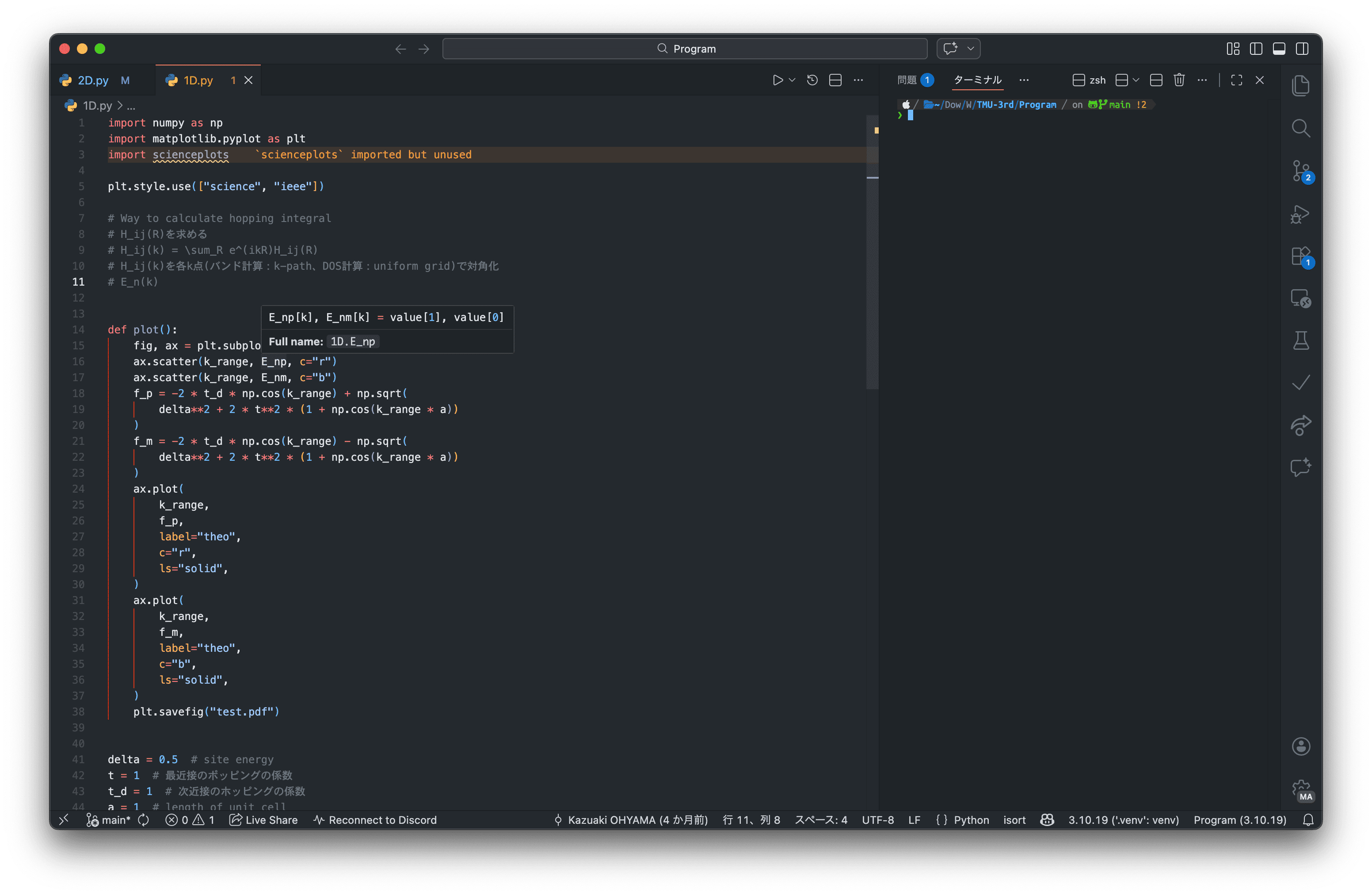
<div style="text-align: center;"><img src="https://m20027.github.io/m20027/assets/images/tips/right_terminal.png" width="45%" /></div>

<body>
<p>Last updated: <time id="modified_date"></time></p>
<script>
const last = new Date(document.lastModified);
const viewDateText = last.getFullYear() + "/" + (last.getMonth() + 1) + "/" + (last.getDate());
document.getElementById('modified_date').textContent = viewDateText;
</script>
</body>]]></content><author><name>yama</name></author><category term="tips" /><summary type="html"><![CDATA[ターミナル ターミナルを右側に表示 表示 mini mapを非表示 サイドバーを右に Last updated:]]></summary></entry><entry><title type="html">Finderの設定</title><link href="m20027.github.io/m20027/2025/12/finder/" rel="alternate" type="text/html" title="Finderの設定" /><published>2025-12-11T00:00:00+00:00</published><updated>2025-12-11T00:00:00+00:00</updated><id>m20027.github.io/m20027/2025/12/finder</id><content type="html" xml:base="m20027.github.io/m20027/2025/12/finder/"><![CDATA[<h3 id="表示">表示</h3>
<ul>
  <li>パスバー：今いる場所を表示</li>
  <li>ステータスバー：カレントディレクトリのファイル数や容量を表示</li>
  <li>デフォルトで，隠しファイル・フォルダを表示
    <div class="language-zsh highlighter-rouge"><div class="highlight"><pre class="highlight"><code>defaults write com.apple.finder AppleShowAllFiles TRUE
killall Finder
</code></pre></div>    </div>
  </li>
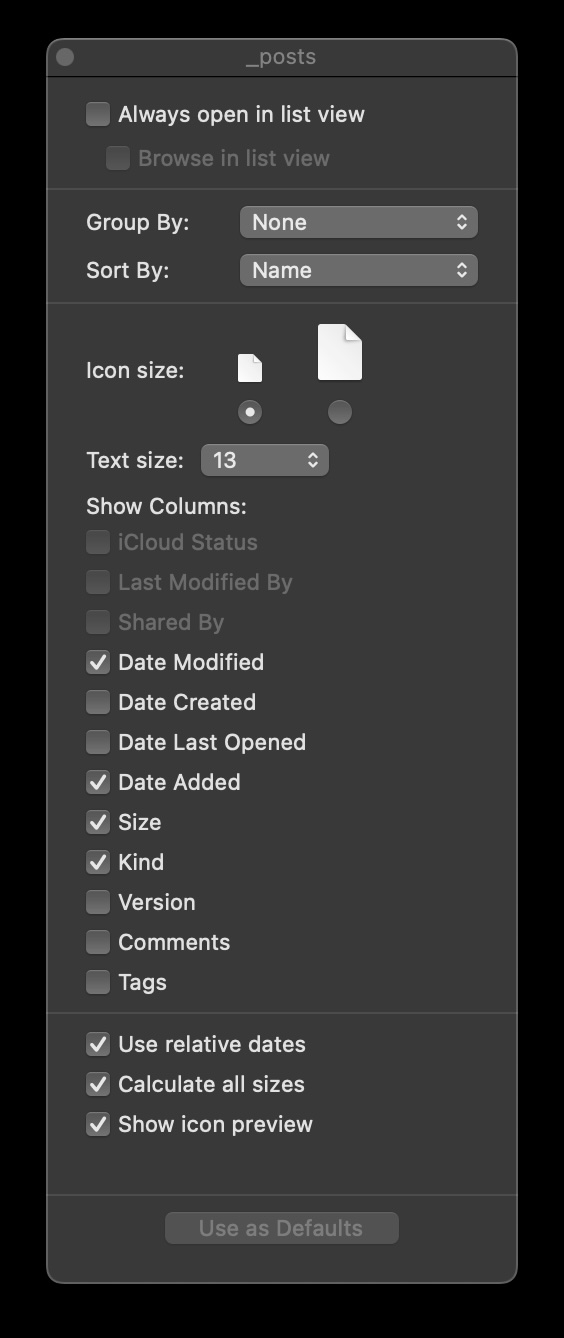
  <li>表示項目の設定</li>
</ul>

<div style="text-align: center;"><img src="https://m20027.github.io/m20027/assets/images/tips/View_option.jpg" width="30%" /></div>

<body>
<p>Last updated: <time id="modified_date"></time></p>
<script>
const last = new Date(document.lastModified);
const viewDateText = last.getFullYear() + "/" + (last.getMonth() + 1) + "/" + (last.getDate());
document.getElementById('modified_date').textContent = viewDateText;
</script>
</body>

<p><small>© 2025 Kazuaki OHYAMA</small></p>]]></content><author><name>yama</name></author><category term="tips" /><summary type="html"><![CDATA[表示 パスバー：今いる場所を表示 ステータスバー：カレントディレクトリのファイル数や容量を表示 デフォルトで，隠しファイル・フォルダを表示 defaults write com.apple.finder AppleShowAllFiles TRUE killall Finder 表示項目の設定 Last updated: © 2025 Kazuaki OHYAMA]]></summary></entry><entry><title type="html">gitの設定</title><link href="m20027.github.io/m20027/2025/11/git/" rel="alternate" type="text/html" title="gitの設定" /><published>2025-11-09T00:00:00+00:00</published><updated>2025-11-09T00:00:00+00:00</updated><id>m20027.github.io/m20027/2025/11/git</id><content type="html" xml:base="m20027.github.io/m20027/2025/11/git/"><![CDATA[<h3 id="pushが遅い時">pushが遅い時</h3>

<div class="language-zsh highlighter-rouge"><div class="highlight"><pre class="highlight"><code>git gc
git fsck
</code></pre></div></div>

<p>それぞれ，</p>
<ul>
  <li>リポジトリ内の不要なファイルを削除し，残りのファイルを整理</li>
  <li>リポジトリの整合性をチェック</li>
</ul>

<p>他にもsshのバッファサイズなどを変える方法もある．</p>

<h3 id="メールアドレスを非公開に">メールアドレスを非公開に</h3>
<p>commitなどで使用されるメールアドレスを<a href="https://github.com/settings/emails">ここ</a>で確認できるgithubがユーザ毎に提供してるID+username@user.noreply.github.comに変更すればよい：</p>
<div class="language-zsh highlighter-rouge"><div class="highlight"><pre class="highlight"><code>git config <span class="nt">--global</span> user.email ID+username@users.noreply.github.com
</code></pre></div></div>

<body><p>Last updated: <time id="modified_date"></time></p>
<script>const last = new Date(document.lastModified);
const viewDateText = last.getFullYear() + "/" + (last.getMonth() + 1) + "/" + (last.getDate());
document.getElementById('modified_date').textContent = viewDateText;
</script></body>]]></content><author><name>yama</name></author><category term="tips" /><summary type="html"><![CDATA[pushが遅い時 git gc git fsck それぞれ， リポジトリ内の不要なファイルを削除し，残りのファイルを整理 リポジトリの整合性をチェック 他にもsshのバッファサイズなどを変える方法もある． メールアドレスを非公開に commitなどで使用されるメールアドレスをここで確認できるgithubがユーザ毎に提供してるID+username@user.noreply.github.comに変更すればよい： git config --global user.email ID+username@users.noreply.github.com Last updated:]]></summary></entry><entry><title type="html">Latexに関して</title><link href="m20027.github.io/m20027/2025/11/latex/" rel="alternate" type="text/html" title="Latexに関して" /><published>2025-11-09T00:00:00+00:00</published><updated>2025-11-09T00:00:00+00:00</updated><id>m20027.github.io/m20027/2025/11/latex</id><content type="html" xml:base="m20027.github.io/m20027/2025/11/latex/"><![CDATA[<p>基本的にこれからLatexを始める場合はLuaLatexを使うのが良いと思う．
Macの場合はbrewでMacTexをbrewでGUIアプリなしでインストールし：</p>
<div class="language-zsh highlighter-rouge"><div class="highlight"><pre class="highlight"><code>brew cask <span class="nb">install </span>mactex-no-gui
<span class="nb">sudo </span>tlmgr update <span class="nt">--self</span> <span class="nt">--all</span>
<span class="nb">sudo </span>tlmgr paper a4
</code></pre></div></div>
<p>TexShopやLateXiTといったGUIアプリは必要に応じて後から別にインストールする．</p>

<p>ユーザディレクトリの直下に<code class="language-plaintext highlighter-rouge">.latexmkrc</code>というファイルを作り以下のようにする：</p>
<div class="language-zsh highlighter-rouge"><div class="highlight"><pre class="highlight"><code><span class="c">#!/usr/bin/env perl</span>

<span class="c"># latex commands</span>
<span class="nv">$latex</span>            <span class="o">=</span> <span class="s1">'uplatex -synctex=1　-halt-on-error　-interaction=nonstopmode -file-line-error %O %S'</span><span class="p">;</span>
<span class="nv">$latex_silent</span>     <span class="o">=</span> <span class="s1">'uplatex -synctex=1 -halt-on-error -interaction=batchmode -file-line-error %O %S'</span><span class="p">;</span>
<span class="nv">$lualatex</span>         <span class="o">=</span> <span class="s1">'lualatex %O -shell-escape -synctex=1 -interaction=nonstopmode -file-line-error %S'</span><span class="p">;</span>
<span class="nv">$xelatex</span>          <span class="o">=</span> <span class="s1">'xelatex %O -no-pdf -synctex=1 -shell-escape -interaction=nonstopmode %S'</span><span class="p">;</span>
<span class="nv">$bibtex</span>           <span class="o">=</span> <span class="s1">'python3 mixej.py %B; upbibtex %O %B; python3 mixej.py %B'</span><span class="p">;</span>
<span class="nv">$bibtex</span> 		  <span class="o">=</span> <span class="s1">'upbibtex %O %B'</span><span class="p">;</span>
<span class="nv">$biber</span>            <span class="o">=</span> <span class="s1">'biber %O --bblencoding=utf8 -u -U --output_safechars %O %S'</span><span class="p">;</span>
<span class="nv">$dvipdf</span>           <span class="o">=</span> <span class="s1">'dvipdfmx -V 5 %O -o %D %S -z 0 -I 0 -d 5'</span><span class="p">;</span>
<span class="nv">$dvips</span>            <span class="o">=</span> <span class="s1">'dvips %O -z -f %S | convbkmk -u &gt; %D'</span><span class="p">;</span>
<span class="c"># $pdflatex 		  = 'pdflatex %O -synctex=1 %S';</span>
<span class="nv">$makeindex</span>        <span class="o">=</span> <span class="s1">'upmendex %O -o %D %S'</span><span class="p">;</span>
<span class="nv">$max_repeat</span>       <span class="o">=</span> 6<span class="p">;</span>
<span class="nv">$ps2pdf</span> 		  <span class="o">=</span> <span class="s1">'ps2pdf %O %S %D'</span><span class="p">;</span>

<span class="c"># index</span>
<span class="nv">$makeindex</span> <span class="o">=</span> <span class="s1">'mendex %O -o %D %S'</span><span class="p">;</span>

<span class="c">#pdf mode</span>
<span class="nv">$pdf_mode</span>         <span class="o">=</span> 4<span class="p">;</span><span class="c"># 0: none, 1: pdflatex, 2: dvips to ps2pdf, 3: dvipdfmx, 4: lualatex</span>

<span class="c"># Prevent latexmk from removing PDF after typeset.</span>
<span class="c"># This enables Skim to chase the update in PDF automatically.</span>
<span class="c"># preview</span>
<span class="nv">$pvc_view_file_via_temporary</span> <span class="o">=</span> 0<span class="p">;</span>
<span class="k">if</span> <span class="o">(</span><span class="nv">$^</span>O eq <span class="s1">'linux'</span><span class="o">)</span> <span class="o">{</span>
    <span class="nv">$dvi_previewer</span> <span class="o">=</span> <span class="s2">"xdg-open %S"</span><span class="p">;</span>
    <span class="nv">$pdf_previewer</span> <span class="o">=</span> <span class="s2">"xdg-open %S"</span><span class="p">;</span>
<span class="o">}</span> elsif <span class="o">(</span><span class="nv">$^</span>O eq <span class="s1">'darwin'</span><span class="o">)</span> <span class="o">{</span>
    <span class="nv">$dvi_previewer</span> <span class="o">=</span> <span class="s2">"open %S"</span><span class="p">;</span>
    <span class="nv">$pdf_previewer</span> <span class="o">=</span> <span class="s2">"open %S"</span><span class="p">;</span>
<span class="o">}</span> <span class="k">else</span> <span class="o">{</span>
    <span class="nv">$dvi_previewer</span> <span class="o">=</span> <span class="s2">"start %S"</span><span class="p">;</span>
    <span class="nv">$pdf_previewer</span> <span class="o">=</span> <span class="s2">"start %S"</span><span class="p">;</span>
<span class="o">}</span>

<span class="c"># Use Skim as a previewer on Mac OS X</span>
<span class="nv">$pdf_previewer</span>    <span class="o">=</span> <span class="s2">"open -ga /Applications/Skim.app"</span><span class="p">;</span>
@generated_exts <span class="o">=</span> <span class="o">(</span>@generated_exts, <span class="s1">'synctex.gz'</span><span class="o">)</span><span class="p">;</span>
</code></pre></div></div>

<p>上の例ではpdfビューアーとしてskimを利用しているためbrew等でインストールが必要
なお，vscodeのみで編集する場合はインストールの必要はない．</p>

<p>シェルを再起動して，例えば<code class="language-plaintext highlighter-rouge">sample.tex</code>をコンパイルする場合は，</p>
<div class="language-zsh highlighter-rouge"><div class="highlight"><pre class="highlight"><code>latexmk <span class="nt">-pvc</span> sample.tex
</code></pre></div></div>

<p>パッケージを新しく追加したなどで更新が必要な場合は以下のコマンドを実行する：</p>
<div class="language-zsh highlighter-rouge"><div class="highlight"><pre class="highlight"><code><span class="nb">sudo </span>mktexlsr
</code></pre></div></div>
<h2 id="コマンドを探したい時">コマンドを探したい時</h2>

<p>unicode-mathが提供しているもの：</p>
<div class="language-zsh highlighter-rouge"><div class="highlight"><pre class="highlight"><code>texdoc unimath-symbols
</code></pre></div></div>
<p>unicode-mathではないパッケージで提供されているもの：</p>
<div class="language-zsh highlighter-rouge"><div class="highlight"><pre class="highlight"><code>texdoc symbols
</code></pre></div></div>

<body>
<p>Last updated: <time id="modified_date"></time></p>
<script>
const last = new Date(document.lastModified);
const viewDateText = last.getFullYear() + "年" + (last.getMonth() + 1) + "月" + (last.getDate()) + "日";
document.getElementById('modified_date').textContent = viewDateText;
</script>
</body>]]></content><author><name>yama</name></author><category term="tips" /><summary type="html"><![CDATA[基本的にこれからLatexを始める場合はLuaLatexを使うのが良いと思う． Macの場合はbrewでMacTexをbrewでGUIアプリなしでインストールし： brew cask install mactex-no-gui sudo tlmgr update --self --all sudo tlmgr paper a4 TexShopやLateXiTといったGUIアプリは必要に応じて後から別にインストールする． ユーザディレクトリの直下に.latexmkrcというファイルを作り以下のようにする： #!/usr/bin/env perl # latex commands $latex = 'uplatex -synctex=1　-halt-on-error　-interaction=nonstopmode -file-line-error %O %S'; $latex_silent = 'uplatex -synctex=1 -halt-on-error -interaction=batchmode -file-line-error %O %S'; $lualatex = 'lualatex %O -shell-escape -synctex=1 -interaction=nonstopmode -file-line-error %S'; $xelatex = 'xelatex %O -no-pdf -synctex=1 -shell-escape -interaction=nonstopmode %S'; $bibtex = 'python3 mixej.py %B; upbibtex %O %B; python3 mixej.py %B'; $bibtex = 'upbibtex %O %B'; $biber = 'biber %O --bblencoding=utf8 -u -U --output_safechars %O %S'; $dvipdf = 'dvipdfmx -V 5 %O -o %D %S -z 0 -I 0 -d 5'; $dvips = 'dvips %O -z -f %S | convbkmk -u &gt; %D'; # $pdflatex = 'pdflatex %O -synctex=1 %S'; $makeindex = 'upmendex %O -o %D %S'; $max_repeat = 6; $ps2pdf = 'ps2pdf %O %S %D'; # index $makeindex = 'mendex %O -o %D %S'; #pdf mode $pdf_mode = 4;# 0: none, 1: pdflatex, 2: dvips to ps2pdf, 3: dvipdfmx, 4: lualatex # Prevent latexmk from removing PDF after typeset. # This enables Skim to chase the update in PDF automatically. # preview $pvc_view_file_via_temporary = 0; if ($^O eq 'linux') { $dvi_previewer = "xdg-open %S"; $pdf_previewer = "xdg-open %S"; } elsif ($^O eq 'darwin') { $dvi_previewer = "open %S"; $pdf_previewer = "open %S"; } else { $dvi_previewer = "start %S"; $pdf_previewer = "start %S"; } # Use Skim as a previewer on Mac OS X $pdf_previewer = "open -ga /Applications/Skim.app"; @generated_exts = (@generated_exts, 'synctex.gz'); 上の例ではpdfビューアーとしてskimを利用しているためbrew等でインストールが必要 なお，vscodeのみで編集する場合はインストールの必要はない． シェルを再起動して，例えばsample.texをコンパイルする場合は， latexmk -pvc sample.tex パッケージを新しく追加したなどで更新が必要な場合は以下のコマンドを実行する： sudo mktexlsr コマンドを探したい時 unicode-mathが提供しているもの： texdoc unimath-symbols unicode-mathではないパッケージで提供されているもの： texdoc symbols Last updated:]]></summary></entry><entry><title type="html">ブログ開始</title><link href="m20027.github.io/m20027/2025/11/first/" rel="alternate" type="text/html" title="ブログ開始" /><published>2025-11-08T00:00:00+00:00</published><updated>2025-11-08T00:00:00+00:00</updated><id>m20027.github.io/m20027/2025/11/first</id><content type="html" xml:base="m20027.github.io/m20027/2025/11/first/"><![CDATA[<h2 id="東京のどこかの大学生">東京のどこかの大学生</h2>

<p><a href="https://github.com/niklasbuschmann/contrast?tab=readme-ov-file">contrast</a>というテーマを使って作成</p>

<ul>
  <li>箇条書きも</li>
</ul>

<ol>
  <li>こんな感じにSchrödinger方程式もきれいに書ける：</li>
</ol>

\[i\hbar\frac{\partial}{\partial t} \Psi(\mathbf{r},t) = \left [ \frac{-\hbar^2}{2\mu}\nabla^2 + V(\mathbf{r},t)\right ] \Psi(\mathbf{r},t)\]

<table>
  <thead>
    <tr>
      <th>Title 1</th>
      <th>Title 2</th>
      <th>Title 3</th>
      <th>Title 4</th>
    </tr>
  </thead>
  <tbody>
    <tr>
      <td>First entry</td>
      <td>Second entry</td>
      <td>Third entry</td>
      <td>Fourth entry</td>
    </tr>
    <tr>
      <td>Fifth entry</td>
      <td>Sixth entry</td>
      <td>Seventh entry</td>
      <td>Eight entry</td>
    </tr>
    <tr>
      <td>Ninth entry</td>
      <td>Tenth entry</td>
      <td>Eleventh entry</td>
      <td>Twelfth entry</td>
    </tr>
    <tr>
      <td>Thirteenth entry</td>
      <td>Fourteenth entry</td>
      <td>Fifteenth entry</td>
      <td>Sixteenth entry</td>
    </tr>
  </tbody>
</table>

<h2 id="code">Code</h2>

<p>Markdownベースなのでもちろんコードも綺麗に表示できる．</p>

<div class="language-javascript highlighter-rouge"><div class="highlight"><pre class="highlight"><code><span class="kd">function</span> <span class="nx">foo</span> <span class="p">()</span> <span class="p">{</span>
    <span class="k">return</span> <span class="dl">"</span><span class="s2">bar</span><span class="dl">"</span><span class="p">;</span>
<span class="p">}</span>
</code></pre></div></div>

<p>コードを<code class="language-plaintext highlighter-rouge">{% highlight language %}</code> <code class="language-plaintext highlighter-rouge">{% endhighlight %}</code>で囲めばよい．<code class="language-plaintext highlighter-rouge">linenos</code>で行番号を表示</p>

<figure class="highlight"><pre><code class="language-python" data-lang="python"><table class="rouge-table"><tbody><tr><td class="gutter gl"><pre class="lineno">1
2
3
4
</pre></td><td class="code"><pre><span class="kn">import</span> <span class="nn">matplotlib.pyplot</span> <span class="k">as</span> <span class="n">plt</span>
<span class="kn">import</span> <span class="nn">matplotlib.style</span> <span class="k">as</span> <span class="n">mplstyle</span>
<span class="n">mplstyle</span><span class="p">.</span><span class="n">use</span><span class="p">(</span><span class="s">"fast"</span><span class="p">)</span>
<span class="n">plt</span><span class="p">.</span><span class="n">rcParams</span><span class="p">[</span><span class="s">"font.size"</span><span class="p">]</span> <span class="o">=</span> <span class="mi">17</span>
</pre></td></tr></tbody></table></code></pre></figure>

<h2 id="引用">引用</h2>

<blockquote>
  <p>What do you get when you cross an insomniac, an unwilling agnostic and a dyslexic?</p>

  <p>You get someone who stays up all night torturing himself mentally over the question of whether or not there’s a dog.</p>

  <p>– <em>Hal Incandenza</em></p>
</blockquote>

<p>Github Gistもサポートしている</p>

<div class="language-html highlighter-rouge"><div class="highlight"><pre class="highlight"><code><span class="nt">&lt;script </span><span class="na">src=</span><span class="s">"https://gist.github.com/fb5e60735c6617f83bc275b7ae86cff7.js"</span><span class="nt">&gt;</span> <span class="nt">&lt;/script&gt;</span>
</code></pre></div></div>

<script src="https://gist.github.com/fb5e60735c6617f83bc275b7ae86cff7.js"> </script>

<h2 id="images">Images</h2>

<p><em>assets</em> folder and embed it with <code class="language-plaintext highlighter-rouge">![title](/assets/name.jpg))</code>とするか以下のようにリンクからもいける</p>

<p><img src="https://cdn.pixabay.com/photo/2022/09/03/23/55/plane-7430558_1280.jpg" alt="Flower" /></p>

<p>YouTubeの動画も埋め込める：</p>

<div style="position: relative; margin: 1.5em 0; padding-bottom: 56.25%;">
  <iframe style="position: absolute;" src="https://www.youtube.com/embed/-6iAS6YbvPU" width="100%" height="100%" frameborder="0" allowfullscreen=""></iframe>
</div>

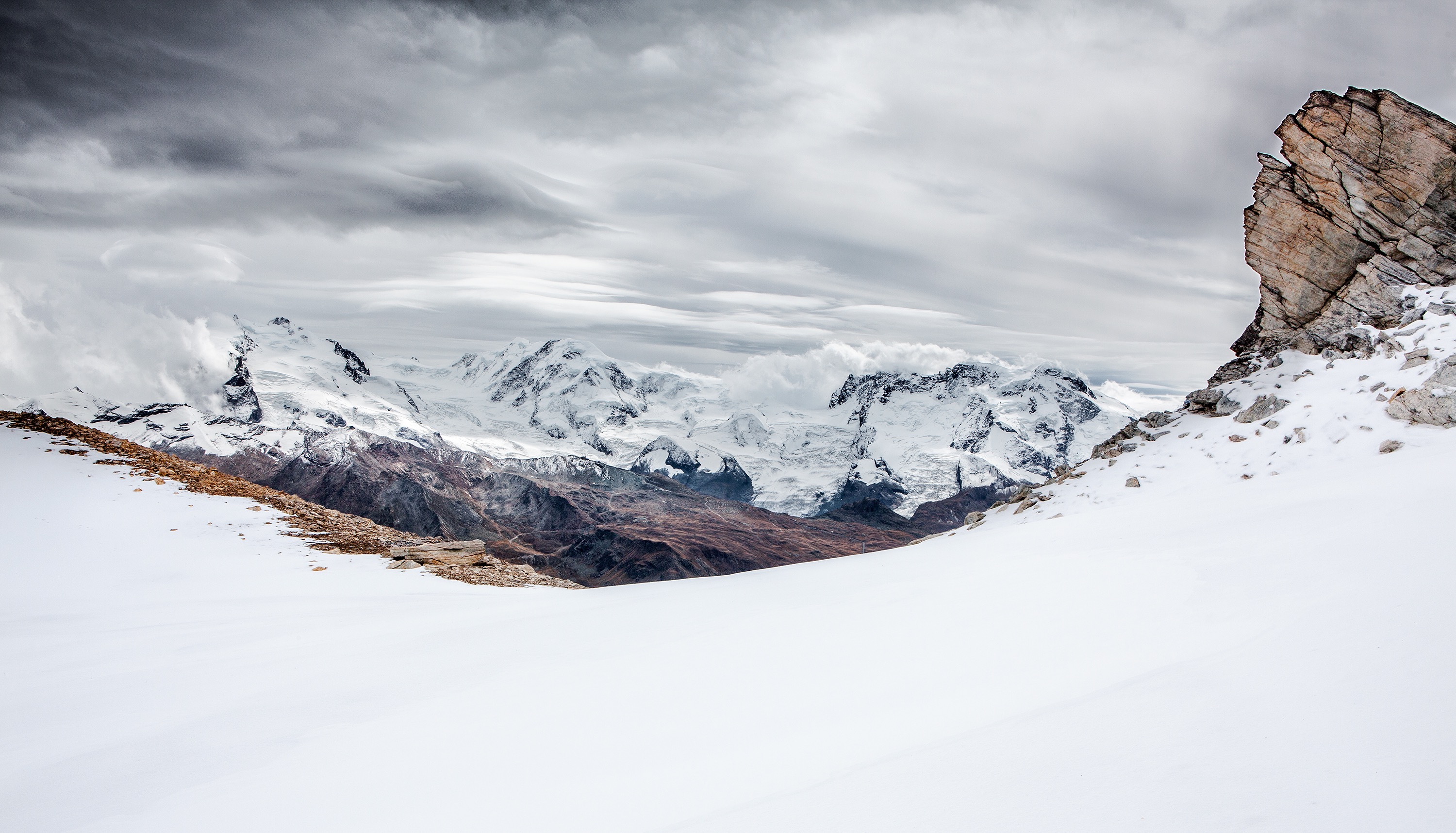
<p><img src="https://user-images.githubusercontent.com/4943215/55412536-edbba180-5567-11e9-9c70-6d33bca3f8ed.jpg" alt="Swiss Alps" /></p>

<h1 id="編集">編集</h1>
<p><code class="language-plaintext highlighter-rouge">bundle exec jekyll serve</code>で<code class="language-plaintext highlighter-rouge">http://localhost:4000/myBlog/</code>にローカルでプレビューを表示できる．編集後，pushするとウェブ版も更新できる</p>

<h2 id="独自の">独自の</h2>
<p>Tipsにはtagをつける</p>
<div class="language-plaintext highlighter-rouge"><div class="highlight"><pre class="highlight"><code>---
title: "test"
layout: post
tag: tips
---
</code></pre></div></div>

<body>
<p>Last updated: <time id="modified_date"></time></p>
<script>
const last = new Date(document.lastModified);
const viewDateText = last.getFullYear() + "年" + (last.getMonth() + 1) + "月" + (last.getDate()) + "日";
document.getElementById('modified_date').textContent = viewDateText;
</script>
</body>]]></content><author><name>yama</name></author><summary type="html"><![CDATA[東京のどこかの大学生 contrastというテーマを使って作成 箇条書きも こんな感じにSchrödinger方程式もきれいに書ける： \[i\hbar\frac{\partial}{\partial t} \Psi(\mathbf{r},t) = \left [ \frac{-\hbar^2}{2\mu}\nabla^2 + V(\mathbf{r},t)\right ] \Psi(\mathbf{r},t)\]]]></summary></entry></feed>